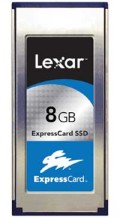
Sometimes after inserting a new SSD ExpressCard device into your Vista computer for the first time you may see the following message under the device’s “ReadyBoost” tab: “Device interface is not supported”. Do the following to enable ReadyBoost for the device (assuming the device is ReadyBoost compatible):
- Start up the “Disk Management” manager under: Right-click over Computer in the Start menu->Manage->Storage->Disk Management
- Find the SSD device and right-click over it to bring up its properties
- Select the Policies tab
- Choose the option “Optimize for performance”
- Drive will remount and ReadyBoost should now be enabled for the device
Note: You can change the policy back to the default of “Optimize for quick removal” and the ReadyBoost option will still be enabled for the device. So the fact that you have to initially change the policy for the device just to enable ReadyBoost is probably a bug. This behavior was observed on an HP Pavilion DV6871US notebook computer with an 8GB Lexar ExpressCard SSD.